 Setup Guide
 VPN Use Cases
 Account & Billings
 FAQs
FAQs 90 Views
 November 6, 2025
 admin
admin No Comments
What is a ConnectsVPN Browser Extension?
The ConnectsVPN browser extension offers one of the lightest and simplest ways to connect your web browser – whether it’s Chrome, Firefox, or Edge – to a proxy server. With just a flick of a switch, you can easily turn the plugin on and off as you please while browsing the web. However, it’s important to note that the extension only protects your web browser and nothing else on your device. This means that other apps, games, and tools will still use a direct, unencrypted internet connection. If you want to protect them as well, you’ll need to install the native ConnectsVPN app. Click this 👉 link to download the ConnectsVPN app now.
For what purpose can it be used?
The extension is exceptionally useful for unblocking region-restricted streaming services and online TV channels. Despite most streaming services banning most free VPNs, ConnectsVPN continues to offer exceptional streaming quality and instant access to all your TV channels and other blocked services in your region. Simply install the Firefox extension and start streaming anything you want from anywhere in the world.
- To install ConnectsVPN extension for firefox, follow these steps:
- Click here here to download Firefox extension..
- Click Add to firefox.
- Click Add extension.
- To allow ConnectsVPN firefox extension to work in a private window.
- Mark check ✅ on Allow this extension to run in Private Windows.
- ConnectsVPN firefox Extension has been successfully added to firefox.
- Open ConnectsVPN firefox Extension from your browser. Click the ConnectsVPN icon at the top-right corner of the browser.
- Click the option Create Account.
- Choose your desired plan and proceed to the next step.
- Enter your details and select your desired payment method to proceed further.
- Click the ConnectsVPN icon at the top-right corner of the browser.
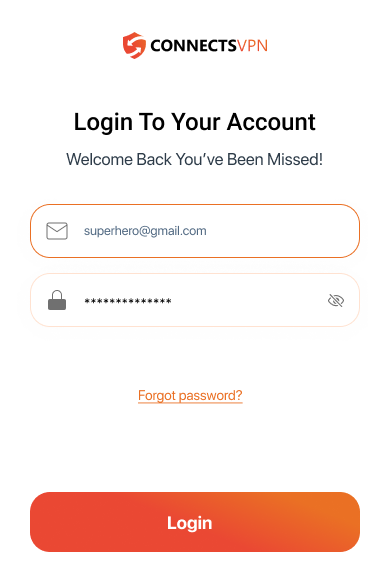
- Click the Login.
- Enter your ConnectsVPN credentials & press Login.
- You are logged in to the ConnectsVPN firefox extension.
- You are now connected.

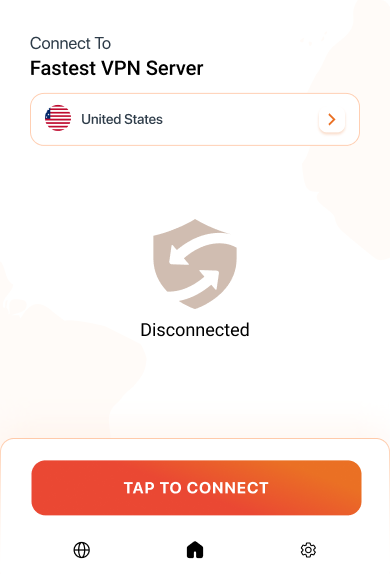
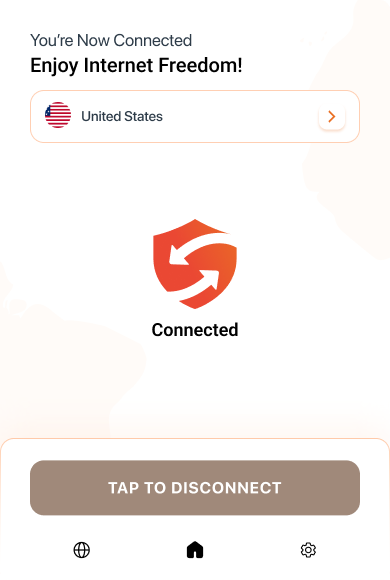
- Click the ⚙️ Settings icon from the top right corner.
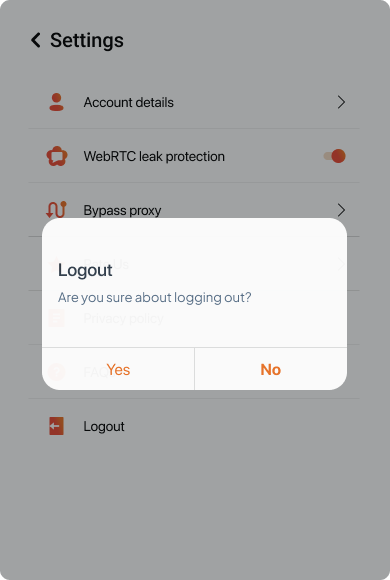
- Click Logout.
- Click Yes to proceed.
- You are logged out from the ConnectsVPN extension.

- Right click over the ConnectsVPN icon.
- Click Remove.
- Click remove again. ConnectsVPN extension will be removed and you will be redirected to the feedback page. Submit your Feedback to complete the process.
- Click the Globe🌐icon at the bottom of the panel.
- Select the country you want to connect to or enter your country via search option.
- You are now connected.

To enable Bypass Proxy, allowing users to whitelist any domains or hosts they wish to browse through their local IP address when connected to the proxy, follow these easy steps:
- Click Settings from the bottom right corner.
- Click Bypass proxy.
- Toggle Disable proxy on bypass list.
- Enter the Hostname or IP Address and enable the toggle button.
- Connect to ConnectsVPN’s firefox Extension
- Once connected, you’ll be able to access those websites without ConnectsVPN’s proxy protection.
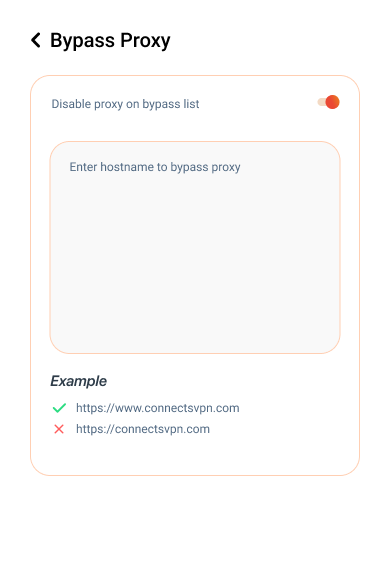
Note: Any URL that you add to the list has to be entered in complete detail. For eg: google.com has to be entered as https://www.google.com.
Note: Once you access your desired website with Bypass Proxy enabled, the website’s data will not pass through the VPN tunnel.
WebRTC (Web Real-Time Communication) is a tool that enables browsers to initiate real-time, peer-to-peer connections with the websites you’re trying to visit. To enable WebRTC Leak Protection, please follow these easy steps:
- Click the Settings icon from the bottom right corner.
- Toggle WebRTC leak protection.
- Whenever you connect with ConnectsVPN Firefox Extension you can browse the internet with WebRTC protection enabled.