Setup Guide
 VPN Use Cases
 Account & Billings
 FAQs
FAQsActivate Split Tunneling
 84 Views
 November 4, 2025
 admin
admin No Comments
To activate split tunneling, enabling certain device or app traffic to traverse the encrypted VPN tunnel while permitting others to access the internet directly, follow the instructions below:
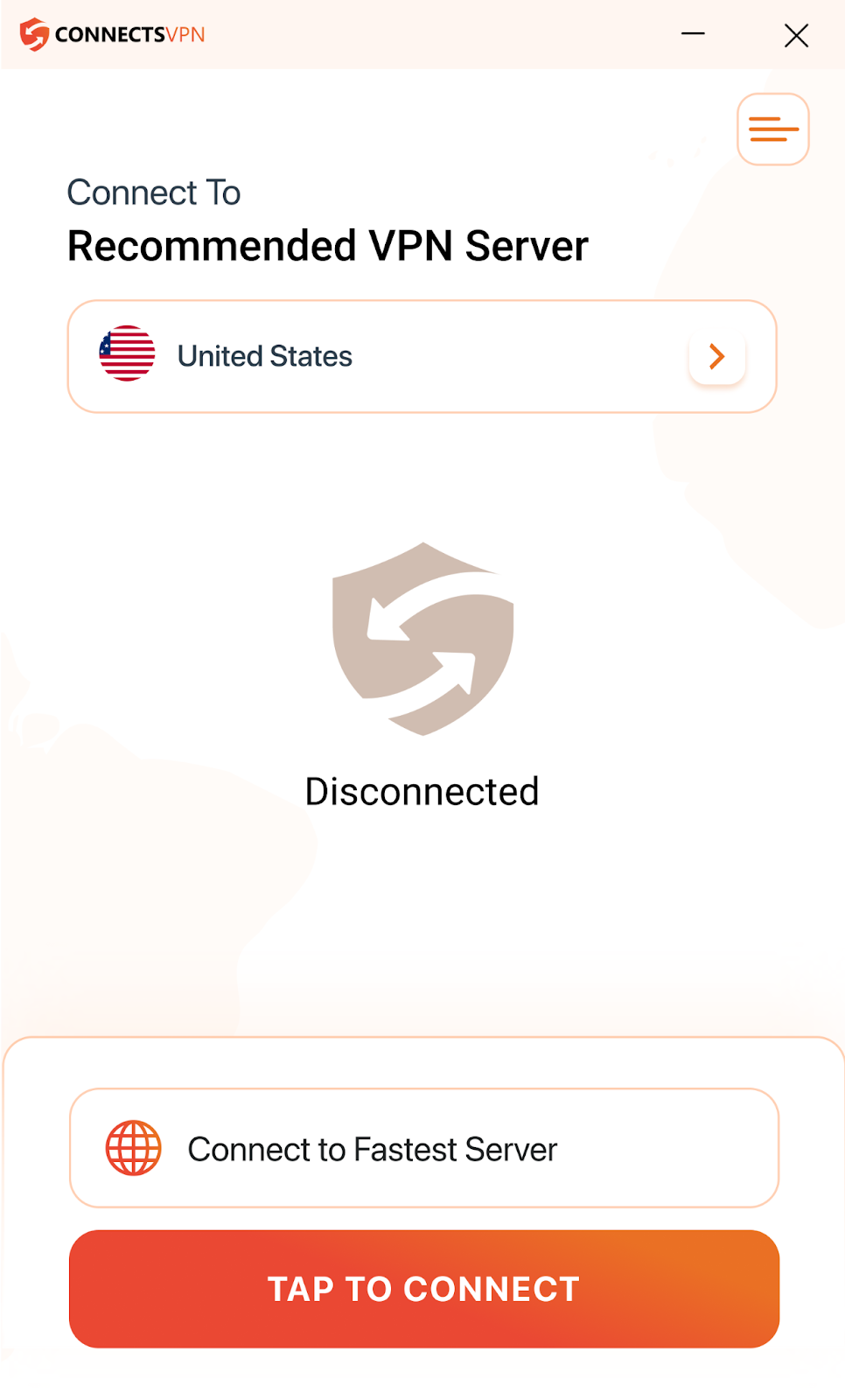
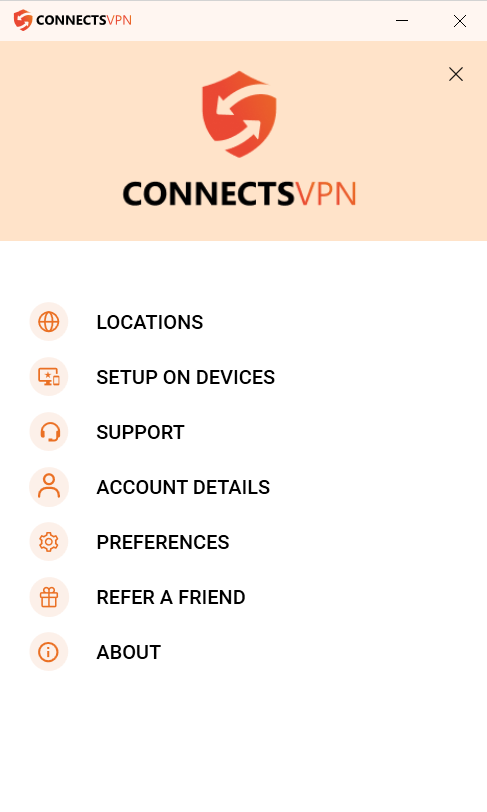
- Click the Hamburger icon (≡) from the top right of the ConnectsVPN app.
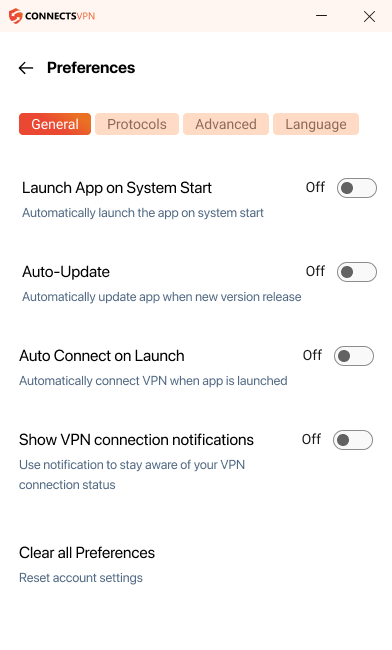
- Click ⚙️ Preferences.
- Select the Advanced tab.
- Toggle Enable Split Tunnelling to turn it on.
- The list of default applications will appear upon clicking the “Add Application” button. You need to mark an application in the Add/Remove Applications tab to add it to the list and unmark it to remove it from the list. Alternatively, you can use the browse option to select any installed application.
- Click browse and add your desired program to enable it with split tunneling. An application might have multiple processes running. Add all the processes in split tunneling to ensure all the data from that application is routed via VPN.
- Connect to the ConnectsVPN app. Once connected, open your internet browser (Ex: Opera – in this case). The selected browser will run under the VPN.