 Setup Guide
 VPN Use Cases
 Account & Billings
 FAQs
FAQs 358 Views
 November 4, 2025
 admin
admin No Comments
Curious about the capabilities of the ConnectsVPN app? Just follow these straightforward steps to install ConnectsVPN on your Mac. The guides will assist you in setting up all the features, enabling you to utilize ConnectsVPN and benefit from its advantages.
- Visit this link to download the ConnectsVPN application.
For a seamless installation of the ConnectsVPN app on your Mac, refer to our tutorial here. The step-by-step guide will smoothly walk you through the installation process.
- Double-click to run the ConnectsVPN app installer.
- You will need enough space in your destination folder to install the ConnectsVPN application.
A prompt window asks you to enter your macOS Username and password.
- After typing your macOS username and password, click Install software
- When the installation is complete, you may close the Installation window.
If you’re facing difficulties while installing the ConnectsVPN app, follow these steps: Navigate to the Apple menu > System Preferences > Security & Privacy > General tab. Under the “Allow apps downloaded from” section, select “App Store and identified developers.
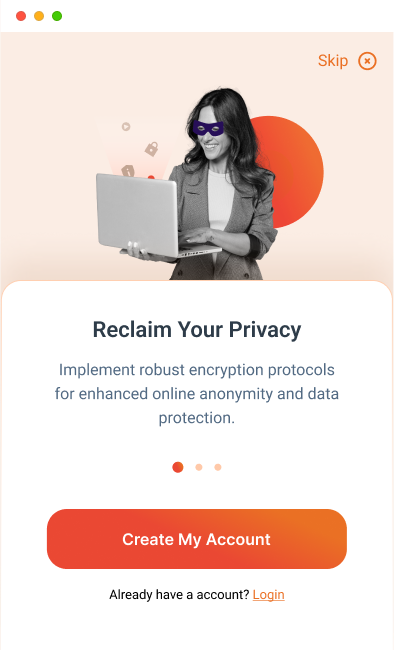
After successfully installing the ConnectsVPN app, follow these steps to log in:
- Launch the ConnectsVPN app.
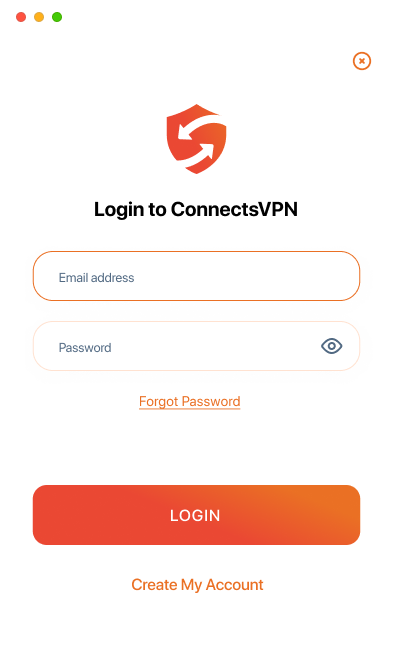
- Click Already have an account? Login. Enter your ConnectsVPN email and password (Use the email and password you set up during purchase).
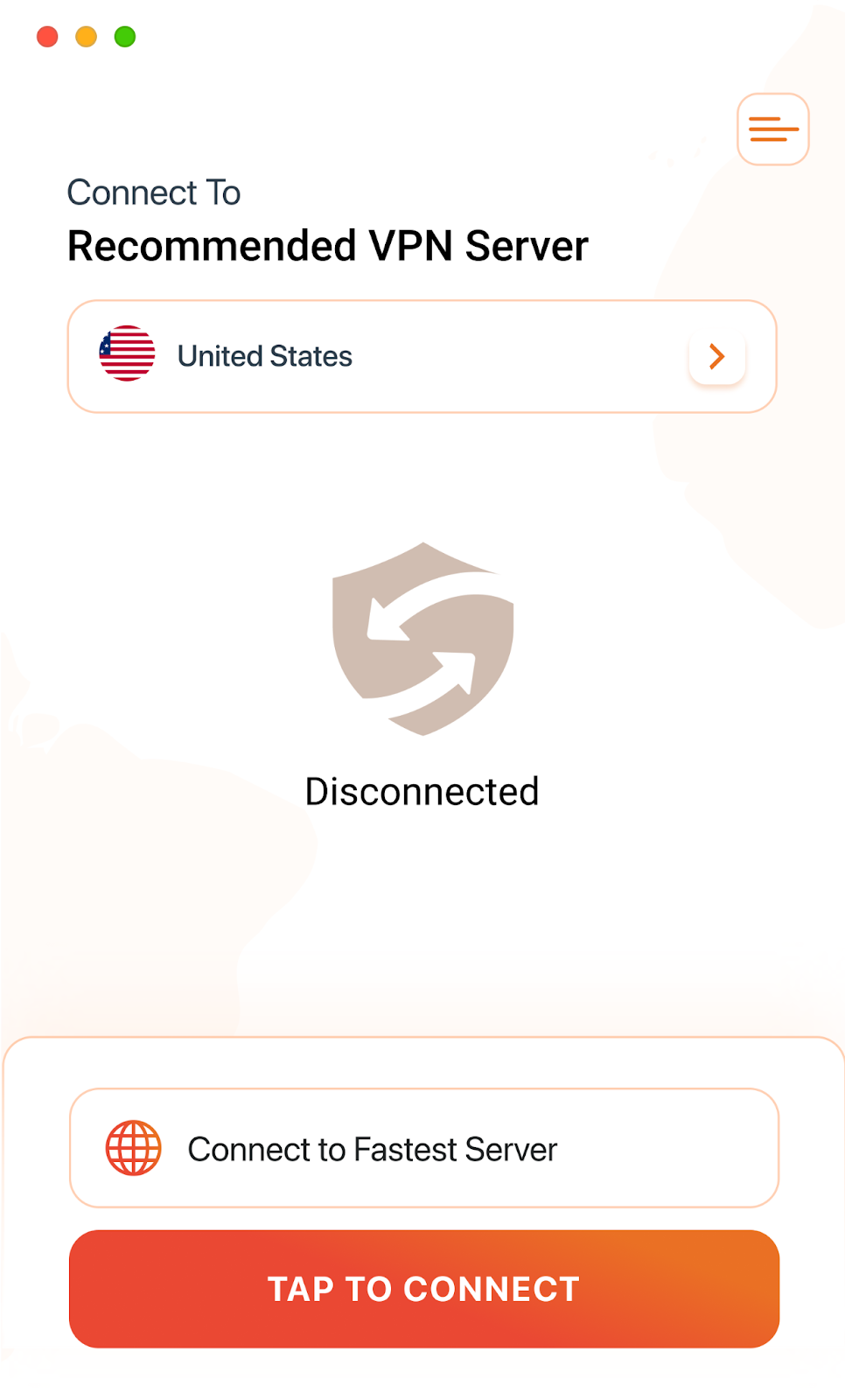
- After entering the account details, click Login. You are now logged into the ConnectsVPN App.
To log out of the ConnectsVPN application, follow these simplified steps:
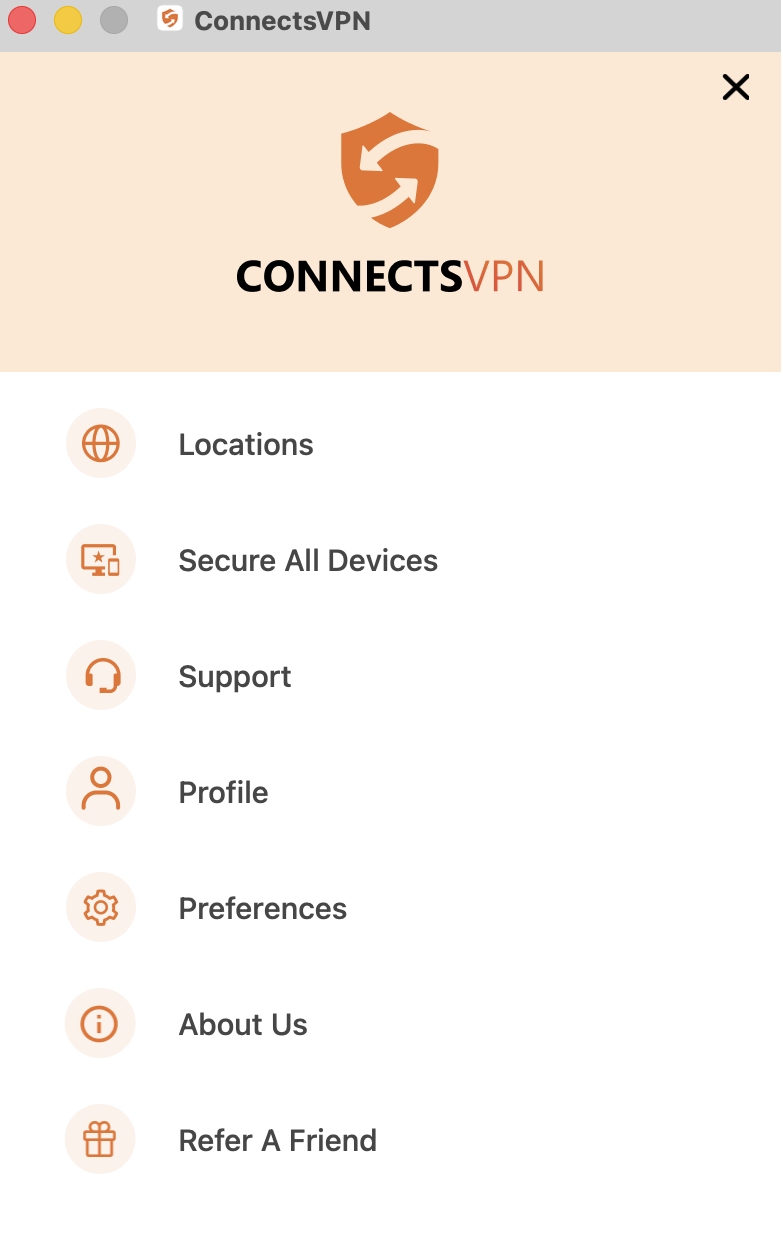
- Click the Hamburger icon (≡) from the top left of the ConnectsVPN app.
- Click Profile.
- In the Profile section, you can see the Logout option. Click Logout to proceed.
- You have successfully logged out from the ConnectsVPN application.
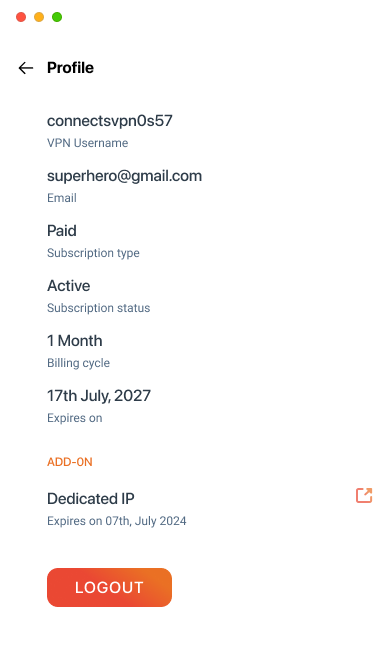
Curious about checking your subscription details in the ConnectsVPN application? Follow the instructions below to view your subscription details:
- Click the Hamburger icon (≡) from the top left of the ConnectsVPN app.
- Click Profile.
- In the profile section, you can see the subscription details.
- VPN Username
- Subscription Type
- Subscription Status
- Billing Cycle
- Expiry On